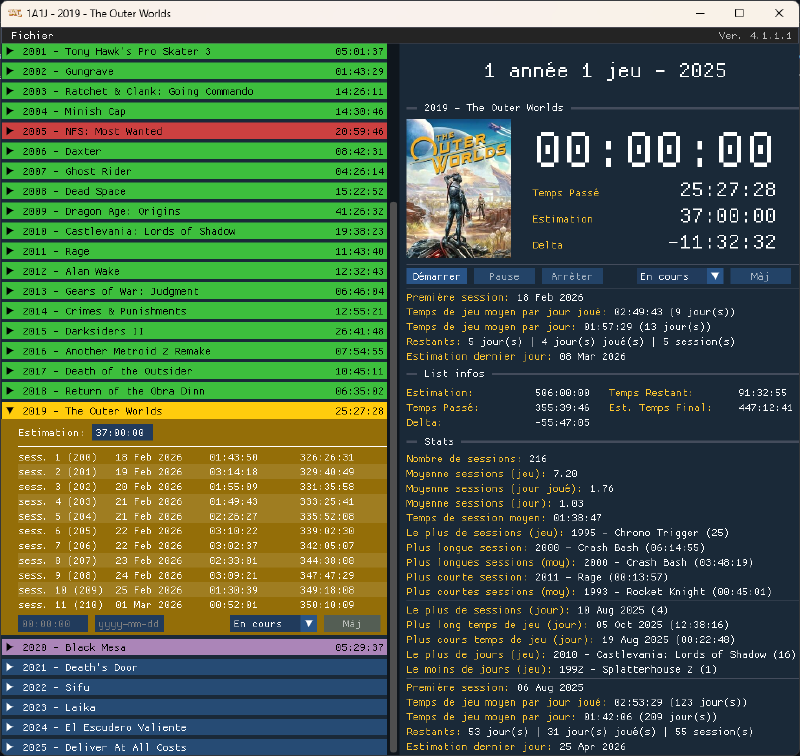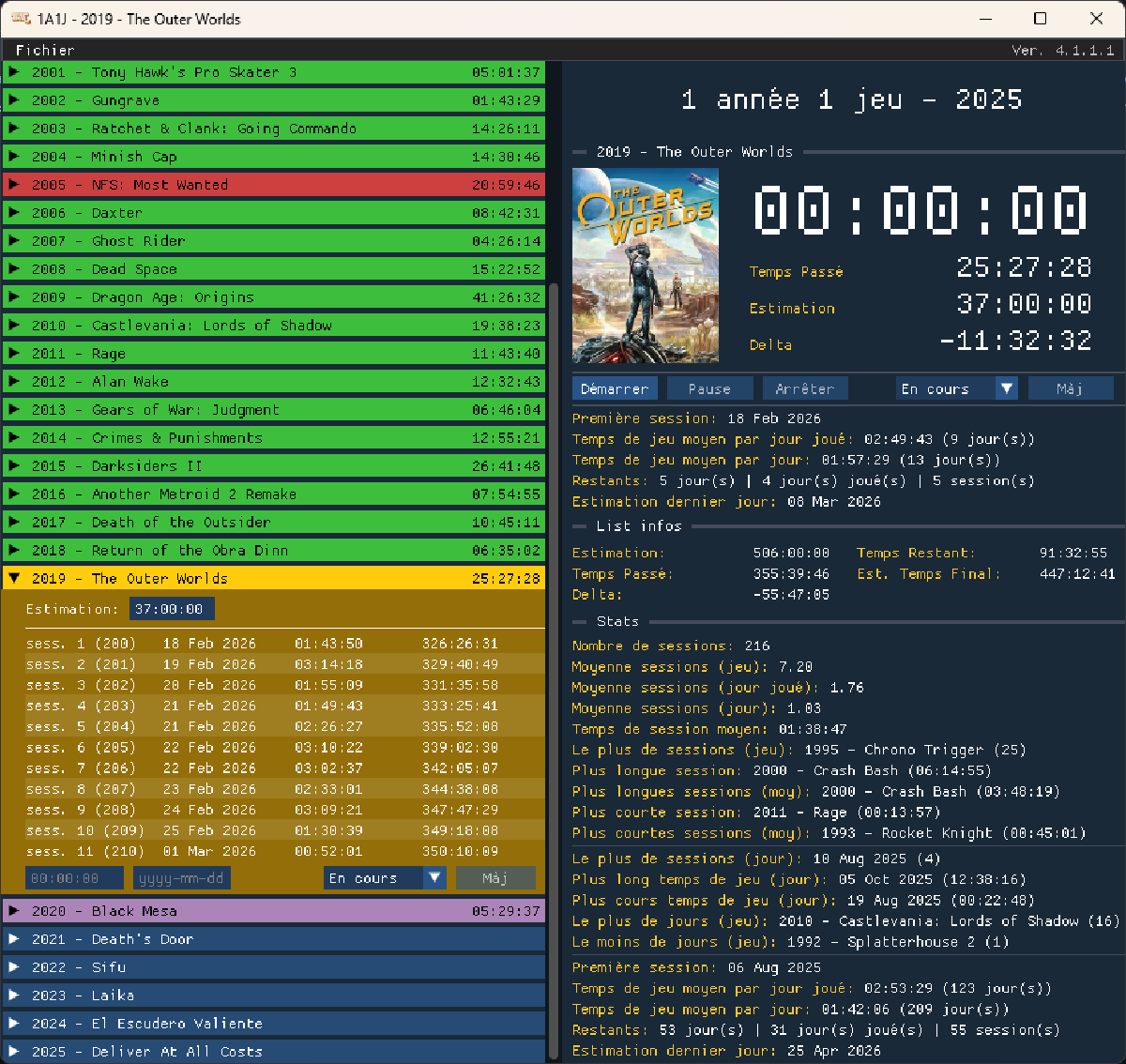

1 Year 1 Game - Splits Manager
1 Year 1 Game concept#
1 Year 1 Game is a challenge I’ve been doing for some years now. I make a list of games, selecting one for each year starting from my birth to the present. I’m born in 1991 so that’s my starting year. I pick a game released in 91, then one from 92, and so on until arriving to the current year. This result in a list of my age + 1 games to play.
There are a few twists to this:
- The games have to be ones that I’ve never finished. It can be started and then abandoned games, or never started ones. As long as they’ve never been finished, it’s good.
- Only one game per series. If I chose Crash Bandicoot 2, I can’t pick Crash Bandicoot 3.
The Idea behind all this is to discover new games as well as finally starting the ones I bought and never played. It also helps with the paralysis of choice and having trouble just starting a game. I made my list so I don’t have to hesitate on what to play and since they’ve already been chosen and know at which game I am in the list, there is no hesitation on starting it either, I can just play. It often takes up a good part of the year but it’s always been fun and I’m really glad I started doing that.
The concept came from a marathon that Shisheyu (a French streamer on Twitch) does each year for his birthday, which he calls “N ans N jeux” (“N years old N games”) where N is his age. During the 2024 edition, someone in the chat said he should pick one game from each year, from birth to current year, and that got me thinking. I then talked about it on the discord server of AngleDroit (an other french streamer) and some member of the community and me started creating our lists and play. All of this happened on August 6th so that’s the “birthday” of the event and now each August 6th we start a new season.
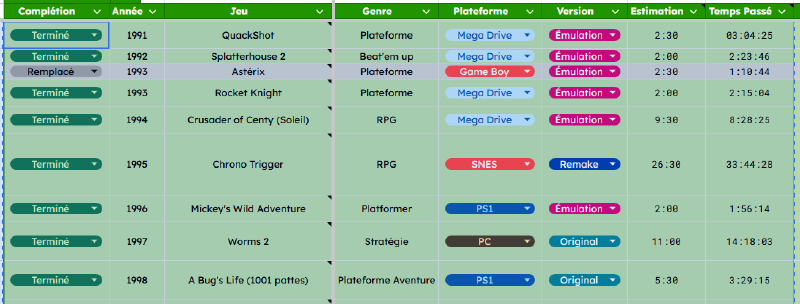
For each season, we have a dedicated Google Sheet that looks like this:
The need for an application#
When doing this challenge, I like to measure how much time I spend to finish each game. For the first season, I used LiveSplit (a speedrunning tool) in which I changed the starting time to match where I was in the challenge. It was fine but I wasn’t entirely satisfied.
For season 2025, I wanted to use LiveSplit differently and have a global timer for all the list to see the progression, but also see the time of each gaming session, so I began thinking of how to set it up. To properly use it, I had to figure a way to address some issues:
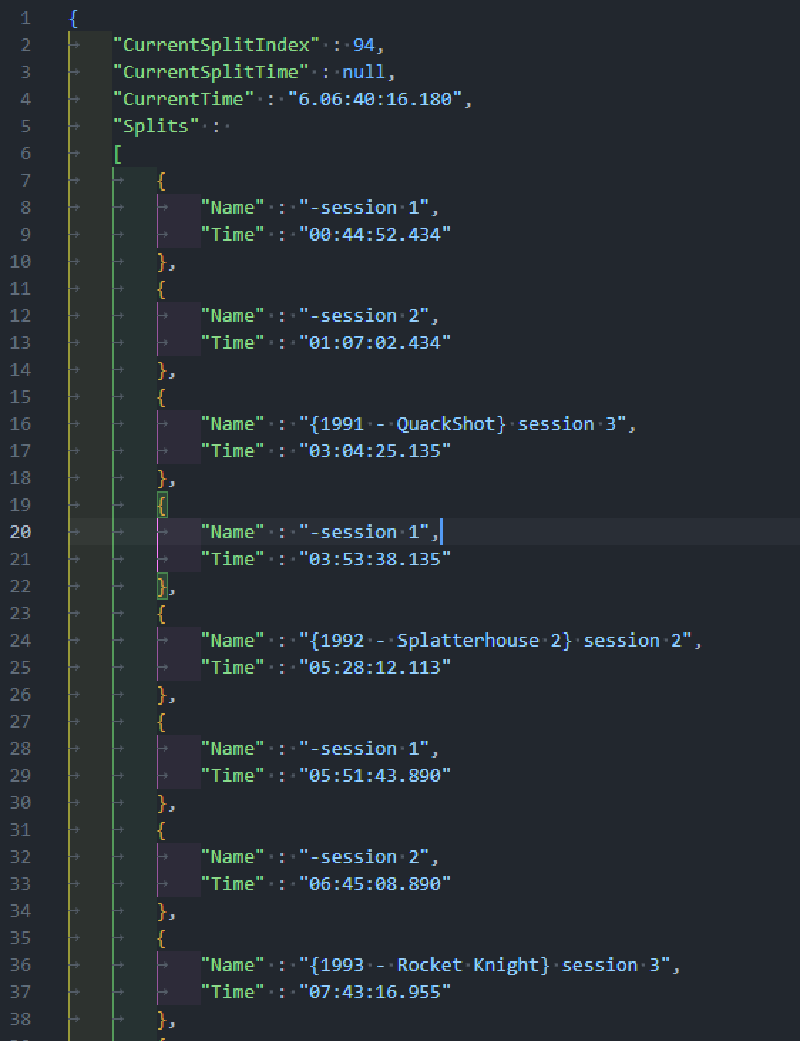
The first one was quite simple, I needed to pause and resume my “run” since it was supposed to take place over a long period of time. I found a plugin that allow to do just that by saving and reloading a json file that contains all the information of the current run and where it paused.
The second one was more complicated. When speedrunning a game, runners often have multiple segments in their LiveSplit that are called “splits”. They allow the better see where time is gained and lost. I wanted to have one split per session spent on a game, which would result in a lot of splits/sessions at the end of a challenge and a way to see where I spent my time the most and other fun stats. The problem is that splits are meant to be set before starting a run, they’re not supposed to be added or removed once the timer has started.
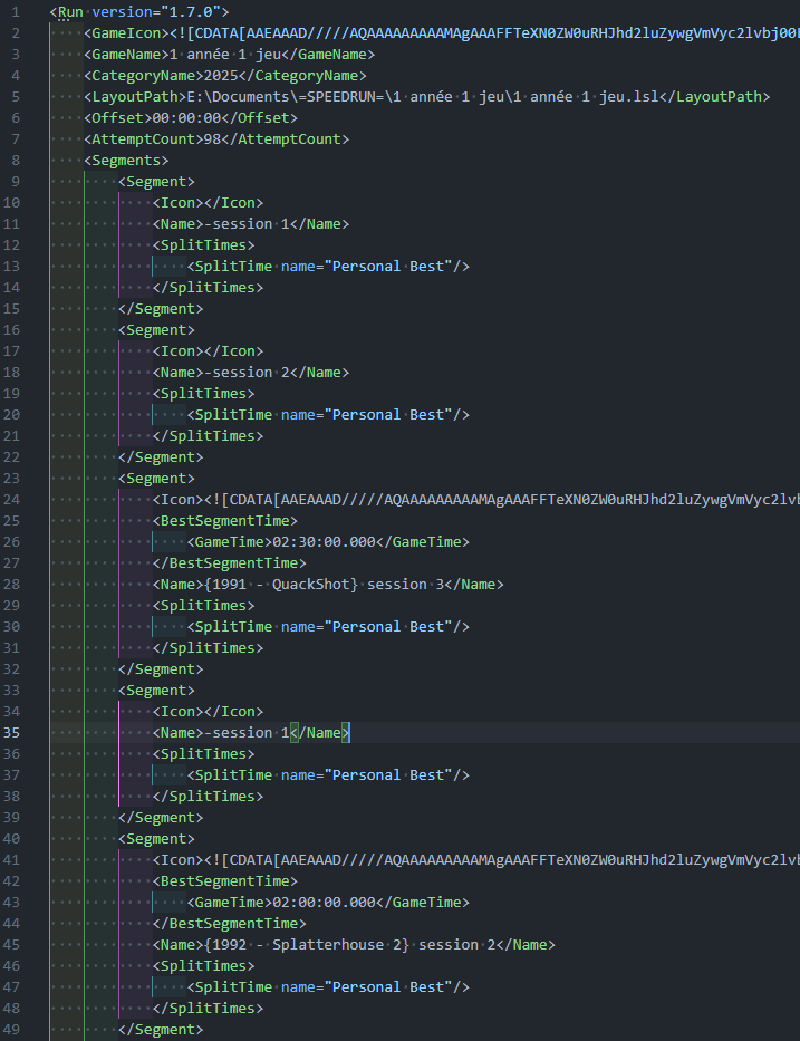
Since I had a json with all my run informations and the file containing the set splits is an xml, I thought to myself that a solution would be to run a program that can open those files, add a split in the xml and set its time in the json and save them and I would be good to go. I thought about doing it by hand but the files were a bit big and there was a lot of room for user errors. There were a good number of things to edit at different places of both files to add a split, without taking in account cases where I started a game out of order (which you don’t do in a speedrun, splits are done in order). There was already some element of time calculation with a simple edit, but considering unordered session implied even more of it. It could mean longer edits and timing errors on my part, this was not the simplest workflow. I was quite eager to create a small program to do all of that for me with my engine so I could do all of that without thinking about it, just by pressing a button.
That’s how the Splits Manager came to be and why it’s called that way, it was meant to manage my LiveSplit splits.
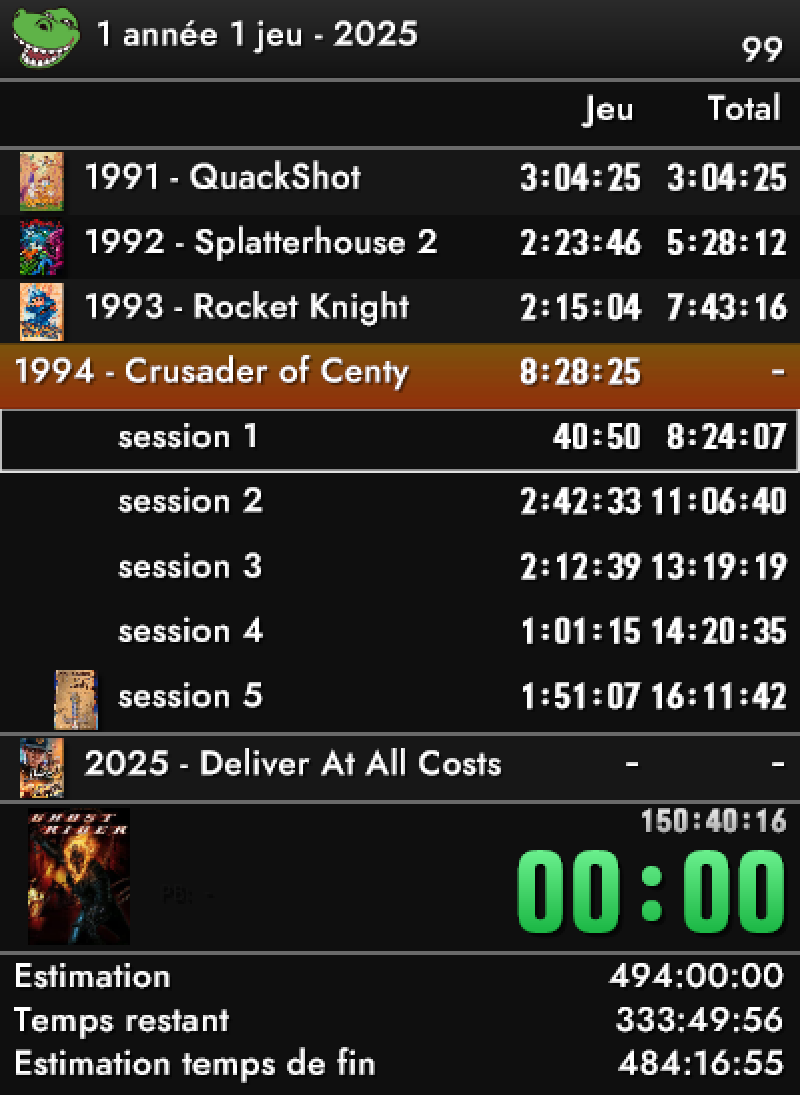
First versions#
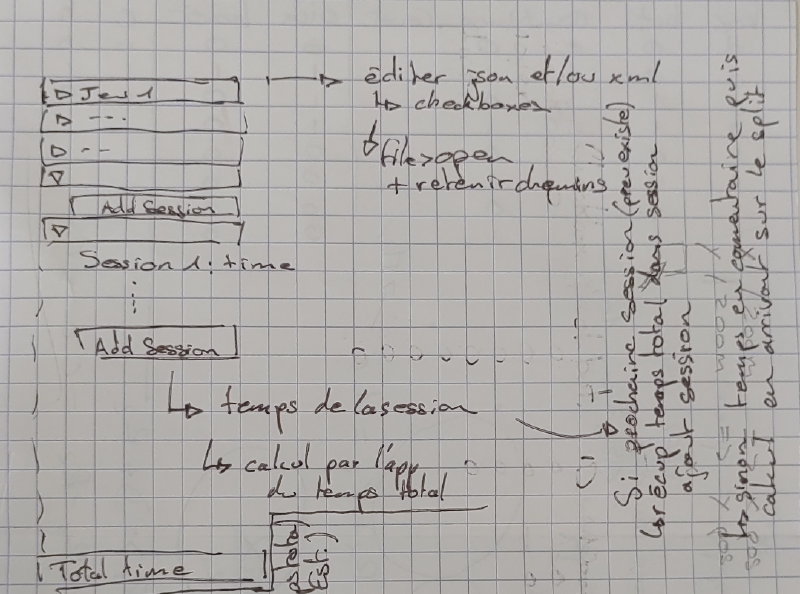
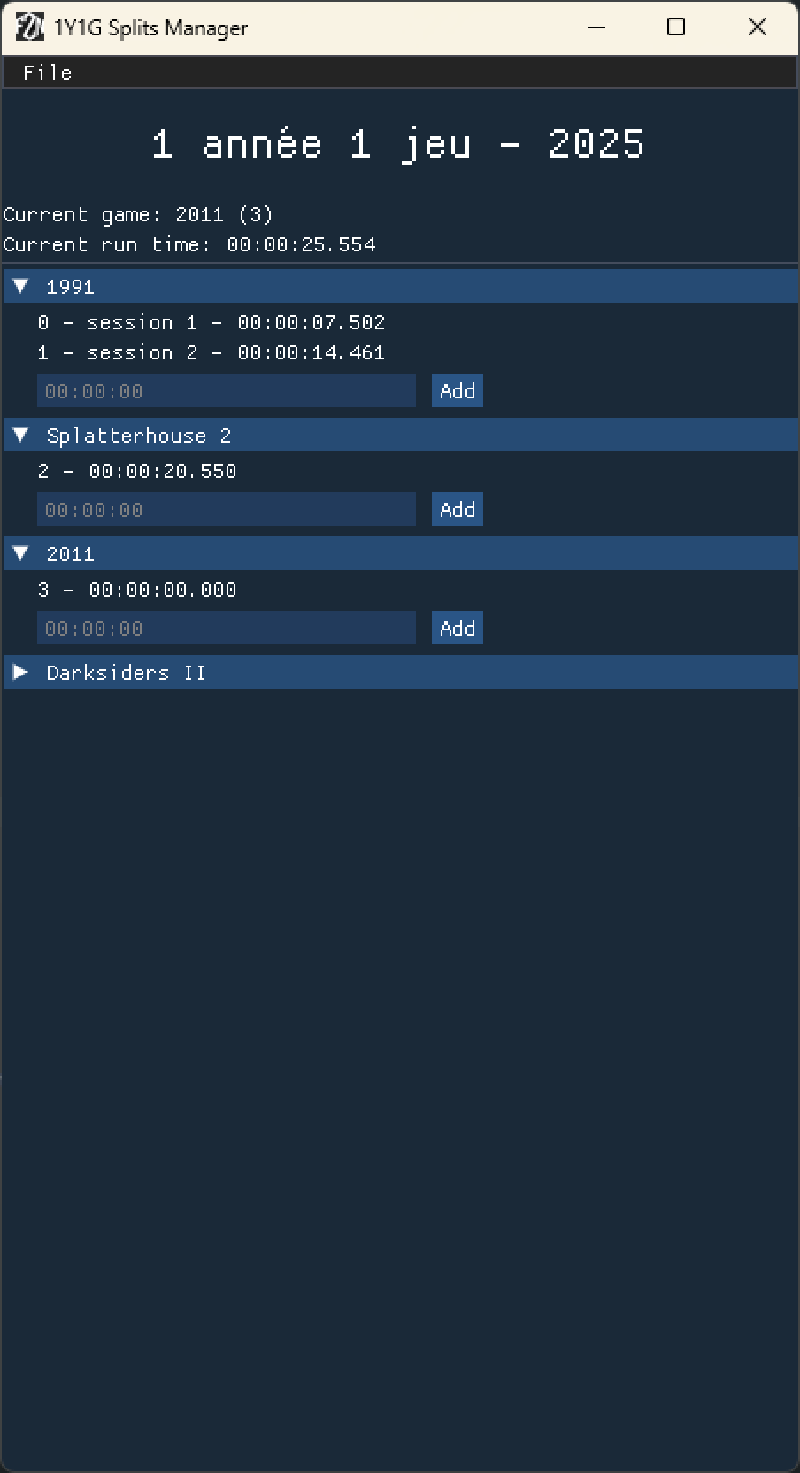
At first, I was planning to only have the list of games in sections that would deploy when clicked to reveal all the sessions spent on it. At the end of a game section, there would be a field to write my last session time and a button to add it. The app would then rewrite the two files I mentioned accordingly.
As often, I used SFML and ImGui in my C++ engine, FaZoN, to create this app. I first used ImGui for debugging purposes in the games I worked on but I realised it was very good to create apps outside of video games as well. I rely heavily on it nowadays as all the apps I create use it.
Files content#
The first thing I had to do was figuring out how the two files I’ll have to manipulate work. The run export was straight forward enough, the only things in it are the splits and their times (global to the whole run), the index of the current split, and the total time of the run.
The splits file was a whole other thing. First, I tried to trim it as much as possible. There are a lot of options in LiveSplits and a good number of them end up being in this file, timing methods, run history, attempt count, etc… I wanted to remove everything I didn’t need and wasn’t mandatory for the file to function so I went into a lot of trial and error, editing the file manually, removing tags and trying to load the file to see if everything was in order. I managed to remove a good amount of content, I was quite pleased. I also repurposed some parameters, among other things, the run category that should be names like “Any%” or “Glitchless” and others became the year of the season. The number of attempts became the number of sessions.
Updating the run#
With the previous step out of the way, I could work on adding new sessions to the run.
The base use case was to add a session to the current game. What I call “current game” in this app is, of course, the one I’m currently playing. Since the beginning, I knew there could be several ongoing games. I had moments during the previous year when I played two games at the same time and I already planned to work that in the app flow. At the time, the current game was simply the first ongoing one I found when reading my files.
If the current game wasn’t finished, there wasn’t much to do. Just add the splits in the right spot and it was over. But if it was over, there could be complications. The base principle was, and still is, to find the next game that is either not started or ongoing. If there were other finished games on the way, I had to get over them as well and pursue the search. This process wasn’t complicated per say but the handling of the two files made it difficult at times.
Like I said, it wasn’t always the current game that I wanted to update. I also wanted the possibility to add a session to any game ahead of time. This was pretty much the same steps as for the current game, without updating the current split (an index indicating where I am in the run). I just had to repurpose an other feature of the split file to save those times because I couldn’t put them in the run export, since it wasn’t where the run was.
A philosophy shift#
My first idea of this app was basically to avoid recreating LiveSplit by doing an other timer, possibly with less features and/or less reliable. But as time went on, I realised that a lot of features I needed weren’t possible with LiveSplit or were but not exactly how I wanted it. It’s really not an issue with LiveSplit, it just isn’t made for what I wanted to do. I also had a little UI problem, since my “run” was extremely long, some time text were overlapping and it wasn’t very readable.
Managing the two files was getting a little cumbersome as well, and manual edition in case I don’t have the app with me was a bit complicated.
I decided it was time to integrate the timer directly in my application, which would simplify the process a lot. It meant I could only use one application instead of two, and manage only one file that I would decide how to design.
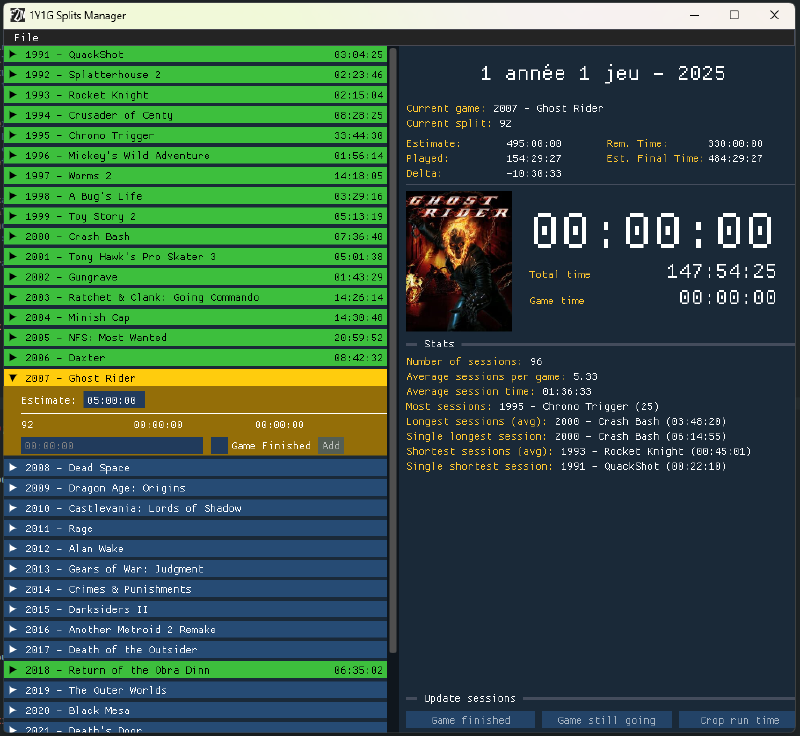
I created a small chrono class in my engine using the chrono standard library and rework my interface a little to add it to the right panel. I made the timer, and other informations, change color when its running and added key binds to start and stop the session.
The video above shows the timer in action after more work on its functionalities, more particularly how I handled the delta when the time spent on a game goes above its estimated time (the amount of time it should take to finish the game). In the top section, there is the timer itself, and under it, the time spent in the game (“Played”), its estimate, and the difference between the two, what’s interests us here. In the section under it, there is the estimated time for the entire list, the total time spent in all the games, the difference between them, the remaining time to the end (according to the estimate), and a prediction of the final time. When a session is running, all the informations updated by the timer turn green. They also turn grey if I pause the timer. At first, the delta is negative because we spent less time on the game than it was estimated. The total play time increases while the remaining time decreases. When the time spent in the game goes above its estimate, the delta turns positive and increases, as well as the remaining time on the list. There are two new informations being updated now, the delta of the whole list decreases (it will increase if it goes above zero as well), and the remaining time increases.
Note: The game estimate under the timer turns green too, despite not changing, purely for aesthetic reasons but I might change that in the future.
As I mentioned at the beginning of this section, adding the timer in the splits manager allowed me to get rid of the splits file and the run export to design my own file to save the list data. For each game, I had to save those informations:
- Cover: The user has the option to set a cover for their games. I learnt about 64bit encoding so I could do what LiveSplit does and save the images directly in the file so they only need to be selected once and then the image file isn’t needed anymore. The image data are saved in form of a string, then read and decoded to make an image again when loading the file. I’m really glad I managed to make it work.
- Estimate
- Name (I choose to add the release year as part of the name but it’s not required)
- State: Before creating this file, I had to deduce a game state with the informations I found in the splits and run export file, it wasn’t always accurate. Adding this information directly in the new file simplified a lot of things.
- Timings: I decided saving sessions times instead of the timer state was better and simpler. In the run export, if my run was 10 hours long and I played two times, I would have a first time at 4 hours and the second at 10 and I had to calculate sessions times. It also meant I had to calculate what time I needed to put in the file if I wanted to add a session in the file manually which wasn’t great. When saving only sessions times, keeping the same example, I have a session of 4 hours and an other of 6 hours in the file. The application has to sum up all those times to get the total runtime but it’s very easy, and I can just quickly add a new session in the file by writing how long I played if I need to.
- Dates: They’re grouped with the timings for easier parsing and it makes a shorter file. They weren’t there at first, but I wanted to address them here since they’re visible on the screenshot below. I’ll detail dates management in the next part of this page.
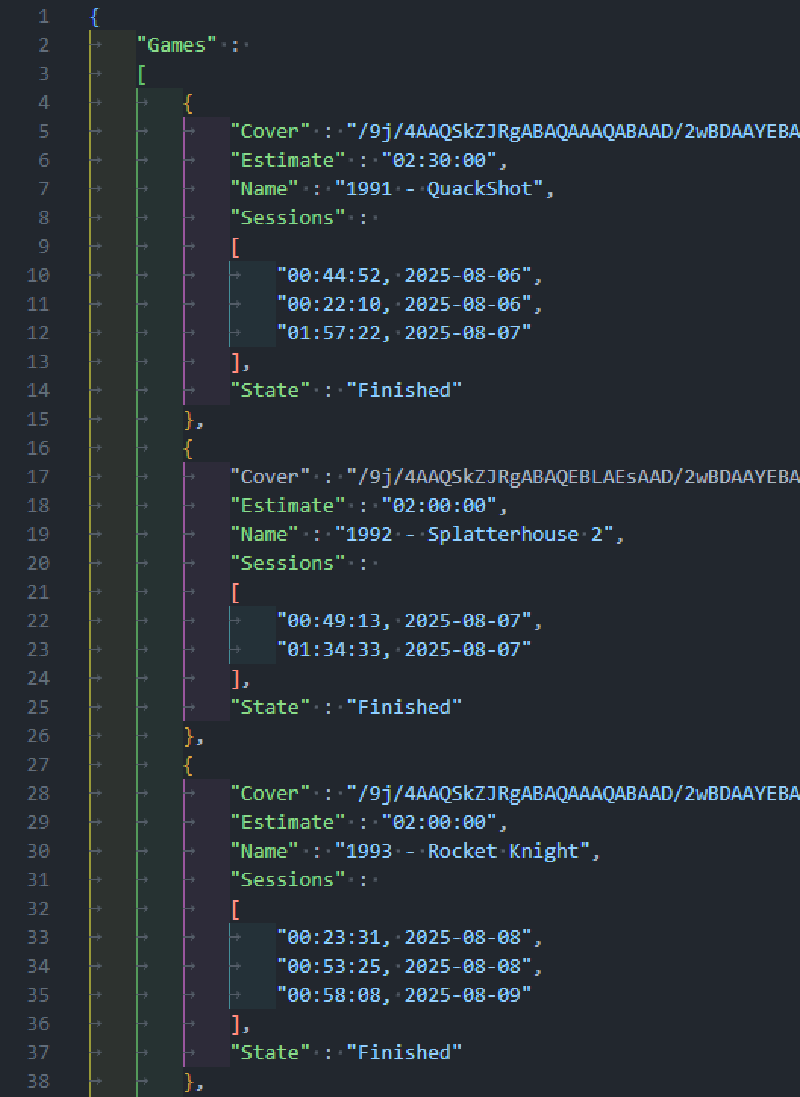
I was very pleased with how this refactoring of the application turned out. I ended up even more liking it and was eager to keep adding features.
Stats#
From the beginning, I had the idea of computing all the stats I could think of in the application. Shortest and longest game, same for sessions, how many average sessions per game, and so on. We can already see some of them in earlier screenshots on the page. A data I’ve been missing and would allow me to calculate even more statistics was the dates of the sessions. With it I could see how much I play each day, the longest period of time a game took, and even try to predict at what date the challenge could end and see this date evolve over the course of my progression.
Adding date management was a relatively big endeavour. I used the year_month_day class available in the chrono library I was already using. I wrapped some of the functions and features I wanted to use in a good number of functions like retrieving the current date. I added the possibility to give a date (format ISO 8601, YYYY-MM-DD) when adding a session to a game manually. When using the timer directly, the date is retrieved automatically when validating the session. For sessions that start one day and end an other (started before midnight, ending after) I consider the day containing the biggest percentage of the session to be the “main day” of it. If I end a play session at 1AM but I’ve been playing 3 hours total, there are two hours in the previous day so that’s where the session will be.
With the date saved alongside each session time, it’s possible to know how many hours I play each day on average and which days I played. That allowed me to get further in my stats calculations. I set a prediction up where I used my average playtime per day to determine a remaining number of days, and by adding it to the date of the last session, I could estimate when my challenge could potentially end.
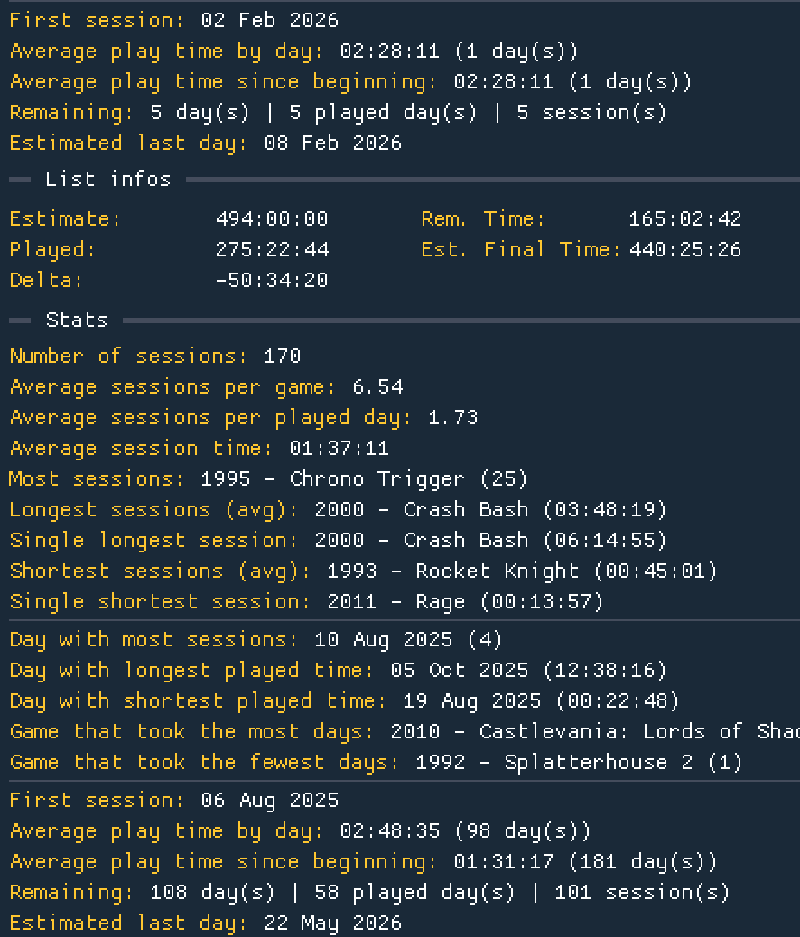
On the screenshot above, there is a group of stat displayed twice. The first time at the top concerns the current game, the second one at the bottom is for the whole list.
List creation#
Now that all the main features were present and I was satisfied with what I had, it was time to add a way to create a list in the app. I didn’t need this right away because I had the splits file and I generated my first custom file from that, but if I wanted to share the app or simply use it for the next season, I had to have some kind of creation menu to avoid just build the file manually.
I had different ideas on how to do it, three came out as the ones I mainly wanted to implement:
- Import from pasted Google Sheet content.
- Import from a CSV file coming from the Google Sheet.
- Create from scratch in the app itself.
From those possibilities, I figured that the copy paste one was the best to do first for its combination of easy to use and relative speed of implementation on my end. Even if it wasn’t the most robust method, at least I would have something and the app would be usable for everyone.
I added a popup to my menu that has a big text field to paste the Google Sheet table in it. Under it, I put checkboxes that match the possible columns of a sheet. The user must tick the ones that are present in the pasted text, meaning the one that are in their table on the Google Sheet. Since I did it for my list, I added an option to merge years and game names together in a <year> - <name> format, I like it better that way and it can serve as a quick reminder of the year of a given game.
Once all the setup is done, there is a button to generate the list and a preview space to check if everything is in order.
One thing that the creation can’t handle simply because the data don’t exist is the sessions for each game. If one has played time at the moment of the import, it will all be counted as one session. The import is more meant to be done at the start of the challenge when no time has been spent on the list yet anyway.
That’s one method done. At the time of writing this page, it’s still the only one available as I focused my efforts on other things since then. I still intend to do the in-app creation at one point but I’m not to sure about the CSV one anymore.
Sharing the app#
Now that the application was ready, I had to find a way to share it in a usable form. When giving a Visual Studio created exe to people, it can create issues if they don’t have the redistribuables on their computer and the app won’t even start. I had to create an installer.
After some digging, I found out that Visual Studio offers a way to create an installer via a type of project. All I had to do was create a new project and feed it my exe. It turned out to be a little bit more complicated because it wasn’t detecting all the required dll so I had to add them manually but overall it does what it says on the tin. I ended up with a setup executable that I could share.
As I’m writing this page though, I’m looking for an alternative to do this as I have some issues with the Visual Studio method. It can’t replace a previous installation, it has to be manually uninstalled before installing the new one. The path you setup (maybe with intermediate folders) is gone the second the user choses an other location for the install, meaning all the application files could end up directly in a selected root folder instead of creating a new one. The output of the project is a bit confusing as it create a msi and a exe file. They pretty much do the same thing except it’s the exe that will install the redists I talked about earlier. That means that if you have the bad luck to install the app via the msi, you’ll think you did the installation but the app still won’t work.
I have some candidates that I will try and select for my next public version, hopefully very soon.
Next updates#
I plan to continue adding features to the app varying from quality of life like small UI tweaks to features I wanted to implement but never did like some missing code in one of the contextual menus of the app.
But among the biggest features I’d like to add there is:
- Create a list from scratch directly in the app
- Add plots to the stats section, to show maybe play sessions frequency or estimated end date evolution, I’m not sure yet.
Conclusion#
I’m very pleased with what I did with this one and I’m looking forward to seeing what I add to it in the future. Releasing it publicly is a good practice opportunity as it allowed me to think about what versioning labelling suits me best and how to create an installer. A nice learning experience. It also allows me to use my engine more and continue to add features to it. I’m even creating sort of a template kit for applications that I can reuse for later projects. Thinking about what can go in this template and how is very pleasing and I love thinking about my experience on the next apps that will be smoother and smoother.
If you’re interested, you can check all my lists for each season of the challenge here: 2024, 2025, 2026
The listed games have notes on them containing what I thought when playing them (french only).